
Organize the working set
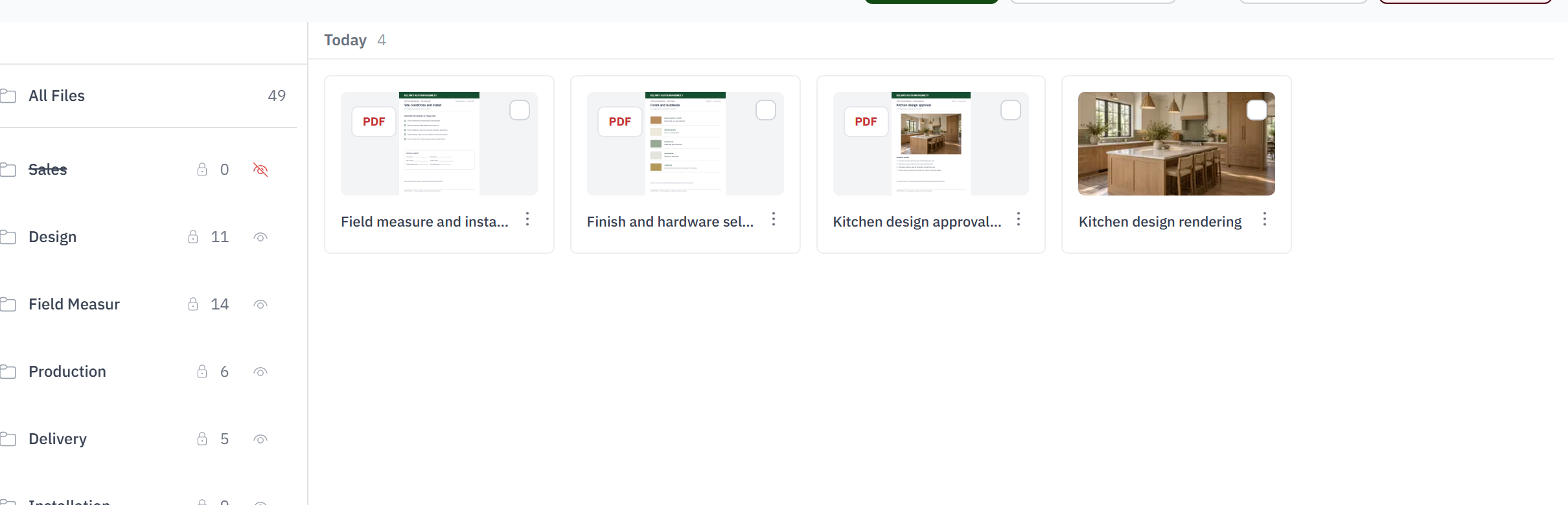
Create folders for field measure, shop drawings, approvals, production, delivery, installation, punch work, or the stages your shop already uses.
Give the office, shop, and field one place to find the current drawing, inspect a marked-up photo, and see the communication behind a decision.
For project managers, shop leads, and installers tired of rebuilding the job story from CompanyCam, inboxes, phones, and shared drives.
Shop drawings sit in a drive while the approval that changed them remains buried in email.
Jobsite photos and punch-list evidence live in CompanyCam or on an installer's phone, separate from the estimate and work.
Attachments get downloaded, renamed, and passed around until nobody is certain which version is current.
Production sees a file without the customer conversation, markup, or project context that explains why it changed.

Keep shop drawings, specifications, marked-up field photos, estimates, invoice documents, and email attachments connected to the job that explains them.
Create folders for field measure, shop drawings, approvals, production, delivery, installation, punch work, or the stages your shop already uses.
Take photos in the mobile app, draw arrows and shapes, add notes, and save the edited image directly to the job instead of documenting the same work in a separate photo app.
Keep specifications, estimate and invoice documents, email attachments, and the related job conversation within the same operational record.
Authorized office, shop, and mobile users can reach the current files without forwarding another attachment or asking where it was saved.
In folders on the job. A folder template gives every new job the same structure, and individual folders can be hidden from production.
Yes. Connect Google Drive, OneDrive or Dropbox and each job's folder syncs both ways, with rules for which files match which job.
Attachments on job email are filed once and linked from the thread and the folder, so there is one copy to keep current.
Any. PDFs, images and documents preview in the browser; CAD and machine files are stored and downloaded.
Yes, on the tablet, for released work. Folders you hide from production stay in the office.
Yes. Jobsite photos and markup are part of every Woodsystems setup, filed on the job with the drawings and documents. The comparison page sets out the differences in detail.